Top Reasons to Choose Autodesk AutoCAD Architecture 2015

Top Reasons to Choose Autodesk AutoCAD Architecture 2015

Easy on the Eyes’ New Interface

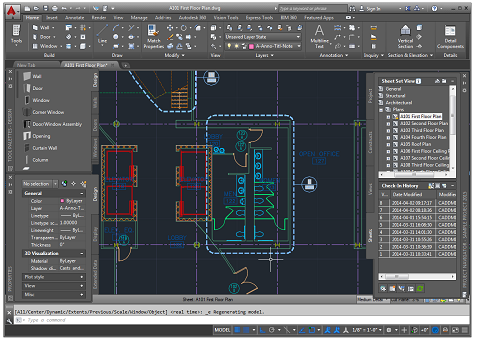
AutoCAD 2015 now offers a modern dark-themed interface that includes the ribbon, status bar, and palettes.  The new dark themed interface combined with the traditional dark model space minimizes the contrast between the drawing space and surrounding tools to help reduce eyestrain. 

Import AEC Styles through the Properties Palette

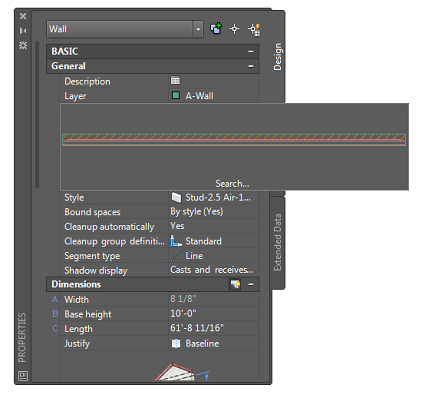
Users are now able to search for Style Based objects in Content Drawings.  The content drawings can be accessed from Template Folders, internal servers or Autodesk 360.  To add content from an external source to your library simply select the object whose style you wish to update and then select the Image Area on the Properties Palette.  From the resulting dialog box users may browse to the earlier mentioned areas.

Command Preview for AEC Objects

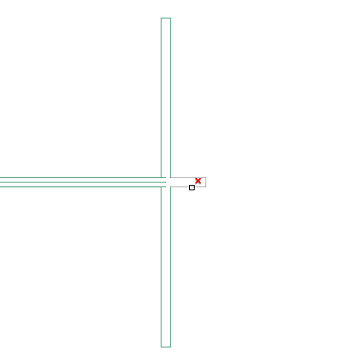
Also new in AutoCAD Architecture 2015 is Command Preview for AEC Objects.  Users may now visualize the result of many commands before actually completing the command.  This behavior is provided to the Extend, Trim, Fillet and Chamfer commands, to name just a few.

(Drawing) Version Management

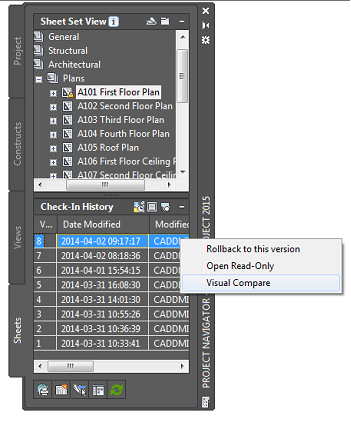
The Project Navigator has been enhanced with Version Management tools which help keep track of design changes made to the drawing files. Changes to Design elements within a drawing can occur often and at times may even revert back to ideas that may have been discarded earlier in the process.  The Version Management concept provides for backup files being created with optional user comments that are stored in the project file folder and viewable on the Project Navigator in the Check In History Area.   Through the Project Properties dialog box users can choose how many versions of a project drawing are saved and whether or not Comments will be saved along with these Drawing Versions.

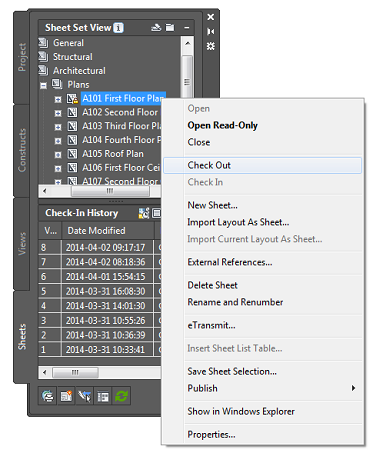
The Creation of Drawing Versions is facilitated through the checking in and checking out of project drawings by the user.  To Check out a drawing, right click and select Check Out from the resulting right click menu.  Once a drawing is checked out it can only be modified and saved by the user who has checked it out.  Other team members can access Checked Out drawing files as Read Only copies.  When the user has finished making modifications to the drawing file, they will save and exit the drawing file.  Once the drawing file has been checked back in a new version will be created and a comment dialog box will appear allowing the user to comment on any changes made to the drawing keeping the rest of the design team informed. 
In the Check In History Area User information and Comments are viewable by all other design team members.  Design Team Members may Roll Back to any previous version of the file based on project requirements.  Click the Detail Button for addition file information.

Visual Compare

Another Enhancement of AutoCAD Architecture 2015 is Visual Comparison.  Visual Comparison allows users to Visually Compare geometry changes between two drawing versions.  By pressing the Control Key and selecting two versions of the drawing file users can enter visual comparison mode by right-clicking and choosing Visual Compare from the resulting right-click menu.  The drawing will be opened and by default newly added objects will be displayed in Green, deleted objects are displayed in red, and unchanged objects are displayed in gray.  These colors are user definable on the command line.

Autodesk AutoCAD Architecture 2015

These five improvements alone make this version of AutoCAD Architecture worth upgrading.

If you would like to see Autodesk AutoCAD Architecture 2015 in action, be sure to join CADD Microsystems for one of our upcoming Tech Tour events in May. You can register now, and join the us in Baltimore on May 6th, Richmond on May 7th, and Washington D.C. on May 8th.  Click here to view our AutoCAD Architecture 2015 New Features webinar recording. Read more about Top Reasons to Choose Autodesk AutoCAD Architecture 2015

Tags: 
Autodesk 2015, AutoCAD Architecture

Top Five Reasons to Choose Autodesk AutoCAD Architecture 2014

Autodesk AutoCAD Architecture 2014 has several enhancements that improve usability and productivity. Some of our favorite enhancements include new tools to automatically attach Property Sets, door and window insertion enhancements, and several usability enhancements for the command line and more.

Property Set Definition Auto-attach

Enabling the AEC Property Set Definition feature in AutoCAD Architecture 2014

It’s now possible to automatically attach Property Set Definitions to all relevant objects in a drawing. With this feature, existing Property Sets may be attached to new objects as they are created - whether directly in the drawing, within blocks, or within Xref’s. Newly created or modified Property Sets work in a similar way, and immediately attach to existing objects. You can enable this setting on a drawing-by-drawing basis from the AEC Object Settings tab of the Options dialog, or by changing the AECPSDAUTOATTACH drawing variable.

Command Line Search
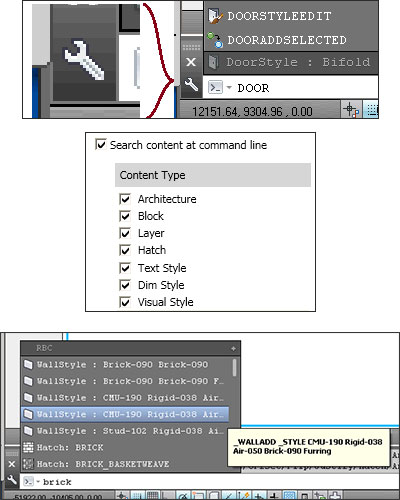
Command Line enhancements in AutoCAD Architecture 2014

AutoCAD Architecture has extended this new AutoCAD feature to allow fast and easy access to all Architecture styles that are in a drawing. Select the “wrench” icon to the left of the Command line to display “Input Search Options”, where you will see “Architecture” at the top of the list. For example, typing “brick” at the command line will display a list of all Wall and other styles that contain “brick” in the current drawing. Selecting a style from this list will create a new object using that style.

Door & Window Insert Enhancement
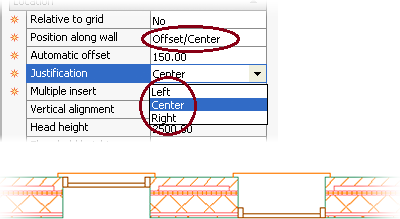
Door and window placement enhancements in AutoCAD Architecture 2014

Do you miss the previous combined “Offset / Center” option when adding Doors and Windows? Autodesk has responded to the many requests to restore that capability. No longer do you need to switch options in the middle of adding a series of these objects. Instead, it is now possible to specify the position of a Door or Window within the thickness of a Wall while adding it. Simply select Left or Right on the drop list shown above and the object being added will be positioned flush with that edge of the Wall. Previously, this required either grip-editing, or specifying the offset using the Anchor tab for the Door or Window.

Set to Layer Zero

Have you ever gotten a drawing from a consultant and wondered why the color of a block does not change as you expect it to? Most likely, the reason is that the components of the block are not on Layer 0. Layers that cannot be deleted, but are not apparently used, may also be due to this setting. MoveBlockToLayer0 will correct the definition of a block by changing all components with one click.

Change Block

As a design changes, components must also change. This command replaces the definition of one or more selected instances of an existing block with another definition in the drawing. This means that Block instances can now be assigned a different definition, without recreating (inserting) the block.

Autodesk AutoCAD Architecture 2014

These five improvements alone make this version of AutoCAD Architecture worth upgrading. If you would like to see Autodesk AutoCAD Architecture 2014 in action, be sure to join CADD Microsystems for one of our upcoming Tech Tour events in May. You can register now, and join the CADD in Richmond on May 7th, Baltimore on May 8th, and Washington D.C. on May 9th.

  Read more about Top Five Reasons to Choose Autodesk AutoCAD Architecture 2014

Category: 
Tags: 
Autodesk 2014, AutoCAD Architecture

AutoCAD Architecture 2013 Service Pack 1

AutoCAD Architecture 2013 Service Pack 1

The long awaited AutoCAD Architecture Service Pack 1 has landed. There have been several key updates in this service pack generated by the Customer Error Reporting Utility!

Autodesk has incorporated a lot of integration for computers running .NET 4.5 which should help eliminate unhandled exception errors and crashes. 
 
There are quite a few updates and we at CADD Microsystems always recommend you read the Read Me document prior to installing any service pack. Some of the key issues are addressed below:
 
Defects addressed:
  • Crashing when opening files.
  • Fatal errors regarding layer keys
  • Xrefs show as unresolved.
  • PDF export no longer causes wipeouts to appear black.
  • Performance related issues when running scripts or creating layers has been resolved. 
  • 3D Navigation tools will no longer cause a crash
  • Walls certain cleanups will no longer cause crashes.
  • Content Migration tool palettes unable to be migrated, including the ability to drag content with the i-dropper.
  • MLeaders: Multileaders incorrectly display a dot at the content block's insertion point.
  • If the Extend Leaders to Text option is turned on, the text in multileaders moves if the drawing is opened or edited in AutoCAD 2013.
Autodesk 360:
  • Will no longer cause unexpected crashes in drawings with Xrefs.
  • Online Render does not support ACA object
  • Tool Palette synchronization will be disabled if you install this service pack. 
  • Pressing F1 does not display Help for the ONLINESYNCSETTINGS dialog box.
  • Drawing files with names containing language-specific characters do not get saved to Autodesk 360.
  • User is not automatically logged in when launching Autodesk 360 from the AutoCAD ribbon.
  • Sometimes the Share Drawing dialog box opens behind the main application window.
 
Similar to Service Pack 1.1 for AutoCAD 2013 the service pack adds a new startup switch and system variables.
 
 
Just in case: If you get the error below, just click the Ignore button and the service pack will continue to install without issues!
 
“ Error 1328. error applying path to file.C:\Config.Msi\PT70E.tmp. <file:///C:/Config.Msi/PT70E.tmp.> It has probably been updated by other means and can no longer be modified by this path. For more information contact your patch vendor.”
 
Tags: 
AutoCAD Architecture, Service Packs, Autodesk 360